Brain Trust Technologies LLC
TOLL FREE: (877) 288-5527
  • Home
  • Why Brain Trust
    • Partners & Certifications
    • Affiliations
  • Services & Solutions
    • Managed Services
    • Hosted Solutions
      • Business Solutions
    • Hardware & Software Sales
    • Professional Services
    • Business Continuity
  • Blog
  • Resources
    • White Papers
    • Brain Trust Reports
    • Case Studies
    • Newsletter Archive
  • About Us
    • Referral Program
    • Contact Us
  • Support

Your passwords are not secure

October 19, 2017 admin Security 2017october19security_c, account monitoring, multi-factor authentication, Password security, security best practice, single sign-on

A password policy designed for federal agencies must be secure, right? Surprisingly, that hasn’t been the case according to the National Institute of Standards and Technology (NIST). On the hook for the password best practices that we still use today — the combination of letters, capitalizations, and numbers — NIST admits that the existing guidelines were misguided. Find out why and how it involves you.

The problem

The issue isn’t necessarily that NIST advised people to create passwords that are easy to crack, but it did steer people into creating lazy passwords, using capitalization, special characters, and numbers that are easy to predict, like “P@ssW0rd1.”

This may seem secure, but in reality, these strings of characters and numbers could easily be compromised by hackers using common algorithms.

To make matters worse, NIST also recommended that people change their passwords regularly, but did not define what it actually means to “change” them. Since people thought their passwords were already secure with special characters, most only added one number or symbol.

NIST essentially forced everyone, including you and your colleagues, to use passwords that are hard for humans to remember but easy for computers to guess.

The solution

One cartoonist pointed out just how ridiculous NIST’s best practices were when he revealed that a password like “Tr0ub4dor&3” could be cracked in only three days while a password like “correcthorsebatterystaple” would take about 550 years.

Simply put, passwords should be longer and include nonsensical phrases and English words that make it almost impossible for an automated system to make sense of.

Even better, you should enforce the following security solutions within your company:  

  • Multi-factor Authentication – which only grants access after you have successfully presented several pieces of evidence
  • Single Sign-On – which allows users to securely access multiple accounts with one set of credentials
  • Account Monitoring Tools – which recognize suspicious activity and lock out hackers

When it comes to security, ignorance is the biggest threat. If you’d like to learn about what else you can do to fortify security, just give us a call.

Published with permission from TechAdvisory.org. Source.

5 computer tips that add hours to your day

October 17, 2017 admin Business 2017october17business_c, business productivity, desktop clutter, keyboard shortcuts, productivity tracker, to-do list, url filtering

There are only so many hours in the workday, so making the most of your time is vital. If distracting websites, unorganized files, and cluttered inboxes prevent you from getting work done, consider using these tips to better manage your time and stay productive at work.
Monitor productivity levels
Start by tracking how much work you complete on an average day. Google Chrome Extensions like RescueTime record your most frequently visited sites, and track how much time you spend away from your computer. Running the app will provide you with a productivity rating and a detailed log of how you spend an average day.

If you find out you’re wasting a huge portion of your time on social networking, you’re more likely to make conscious adjustments on how you manage your time.

Get rid of clutter
Another way to increase output is by deleting old files, uninstalling unused programs, and organizing documents into appropriately labeled folders. This makes your work easier to find and improves your computer’s performance.

As for the clutter in your email inbox, Gmail and Outlook both have features that filter out unimportant messages. Simply enable Priority Inbox on Gmail or Clutter on Outlook to get a clean, spam-free inbox.

Block time-wasting sites
Visiting non-work-related websites is a surefire way to hinder productivity. A quick, five-minute break to check your Facebook feed or watch a YouTube clip may not seem like much, but a few of those per day add up to a lot of time.

If you and your employees have trouble staying away from sites like Facebook, Instagram and Twitter, it’s a good idea to block access to them using URL filters.

Of course, if you want your employees to take occasional breaks during the day, you could use apps like StayFocusd or Strict Workflow. These allow you to set a limit on how long and how many times users can visit non-work-related sites.

Stay on track with to-do lists
To-do lists help you break down large projects into manageable, bite-sized tasks. And perhaps the most satisfying aspect is crossing things off the list, giving you and your employees a sense of accomplishment and total visibility of your progress.

There are wide variety of digital to-do lists available today like Google Tasks or Trello. These platforms allow you to set deadlines for small tasks and write clear instructions for each item on the list. What’s more, they’re incredibly easy to use and are great for keeping track of your workflow.

Use keyboard shortcuts
Last but not least, mastering keyboard shortcuts will make it easier to perform simple functions than if you’re stuck looking for them in the toolbar. There are more than a hundred useful shortcuts, but some that you should always keep in mind are:

    • Ctrl + C, Ctrl + V, Ctrl + X – to copy, paste, and cut selected items
    • Ctrl + Z – to undo changes
    • Ctrl + T – to open a new tab on your web browser
    • Alt + Tab – to switch between open windows
    • Alt + F4 – to close the program

For many more like these, take a look at Windows’ list of advanced shortcuts.

These are just some of the tips every user should know to stay productive. If you need more ideas on how to get more out of your technology, call us today. We provide enterprise-level tools and advice that will make your life a lot easier.

Published with permission from TechAdvisory.org. Source.

Top tips for picking the right power supply

October 12, 2017 admin Hardware 2017october12hardware_c, cabling, cooling, efficiency, energy, power supply unit, psu, wattage

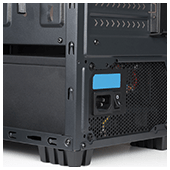
There are plenty of hardware specifications to consider when installing a new workstation in the office, but one you should focus on first is the power supply unit (PSU). Choosing a faulty, substandard PSU often leads to unstable systems and poor performance. Make sure you have the perfect power supply for your workstations by following this guide.

Higher isn’t always better
Many users assume the higher the total wattage, the better the performance of the PSU. While enormous 1800W PSUs are useful for running multiple drives and graphics-intensive applications, they’re unnecessary and often cost you an arm and a leg.

Most computers don’t run at full capacity all the time. In fact, if your computer has mid-level graphics cards, processors, and RAM, 600W is more than enough.

To find out exactly how much you need, online PSU calculators will give you a rough estimate of your daily power consumption. Once you’ve calculated how much wattage you need, you’ll ideally want a PSU that has a slightly higher total wattage limit to provide some headroom in case you want to install additional components later.

Pay attention to efficiency ratings
Highly efficient PSUs tend to have more effective components, consume less energy, and produce less heat, which saves you from huge monthly energy and cooling bills.

The best way to determine whether your PSU is efficient is to look for ones with “80 Plus” certifications. This certification means that a unit is at least 80% efficient, and loses approximately 20% as heat.

Note that higher efficiency ratings equal higher prices, so be sure to weigh the potential energy and cooling savings against the upfront cost of the PSU.

Consider larger PSUs
Although they can be quite cumbersome, larger PSUs are more reliable than lightweight models. Large PSUs are equipped with more advanced internal components and better cooling management. Fans are larger too, which means they can move more air, make less noise, and keep your workstation cool.

Choose your cables wisely
When it comes to cabling, you have three options: hard-wired cabling, partially modular cabling, or fully modular cabling.

  • Hard-wired cables are attached directly to the PSU box. While this setup is cheaper than the other two cabling options, the number of plugs are limited and not suited for customization.
  • Fully modular cabling means all PSU cables are removable, making installation and cabling management easy. These PSU models, however, tend to be much more expensive than other types of cabling.
  • Partially modular cabling takes the best of both worlds, providing necessary cables for the PSU while giving room for other components at a moderate price.

Research the manufacturer
Ideally, your PSU should be provided by a reliable manufacturer that offers reasonable warranties and comprehensive support. Most people tend to opt for Corsair, Seasonic, and Antec PSUs, but you should still take time to research the products.

Look for customer reviews about the specific make and model of your PSU. If that’s not possible, get a hardware technician’s expert opinion.

Choosing the right hardware can be extremely difficult, especially if you don’t have the technical know how. So if you need more guidance about all things related to hardware, call us today. We’re more than happy to answer any of your questions.

Published with permission from TechAdvisory.org. Source.

«‹ 16 17 18 19›»
Brain Trust Technologies LLC

6749 S. Westnedge Ave
Suite K, #128
Portage, MI 49002-3556

Southwest Michigan: (269) 290-7137
St. Louis: (314) 558-0623
Toll Free: (877) 288-5527

SMS Terms of Service | SMS Privacy Policy

© 2025 Brain Trust Technologies, LLC. All Rights Reserved