
7 Warning signs of malware infection
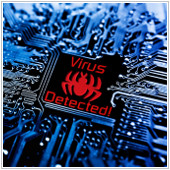 As companies go to the Internet to conduct their business, their IT security becomes more vulnerable to many hackers and viruses. That’s why it’s even more important to recognize whether or not your systems are under threat from malicious software to swiftly fend off the infection. So how do you know if your company’s IT security is under threat? Here are a few warning signs to tell if you are a victim of malware infection.
Slow computer
The most common symptom of a malware infection is a slow running computer. Are your operating systems and programs taking a while to start up? Is your data bandwidth suspiciously slow? If so, your computer may potentially have a virus.
However, before you immediately assume your computer has a virus, you should check if there are other causes to your computer slowing down. Check if you’re running out of RAM. For Windows, open task manager (Ctrl + Shift + Esc) and go to the Performance tab and check how many gigabytes of RAM you are using under the Memory section. For Mac OS users, you can open the Activity Monitor app and under System Memory you should be able to find out your RAM usage.
Other causes of a slow system include a lack of space on your hard drive and damaged hardware. Once you’ve ruled out the other potential causes, then a virus may have infected your device.
Blue screen of death (BSOD)
If your PC crashes regularly, it’s usually either a technical problem with your system or a malware infection. You might not have installed the latest drivers for your device or the programs you’re running could possibly be incompatible with your hardware. If none of these problems are apparent in your PC then the virus could be conflicting with other programs causing your crashes.
To check what caused your last BSOD go to Control Panel> System and Security> Administrative Tools> Event Viewer and select Windows Logs. Those marked with an “error” are your recorded crashes. For troubleshooting solutions, consult forums or your IT department to figure out what to do next.
Programs opening and closing automatically
Malware can also be present when your programs are opening and closing automatically. However, do check if some programs are meant to behave this way or if they are simply incompatible to run with your hardware first before coming to the conclusion that your computer has a virus.
Lack of storage space
There are several types of malware that can manipulate the files saved on your computer. Most tend to fill up your hard drive with suspicious files. If you find any unknown programs that you have never installed before, don’t open the application, search up the program’s name over the Internet and use antivirus protections once you’re certain that it’s malware.
Suspicious modem and hard drive activity
Combined with the other warning signs, if your hard disk is working excessively while no programs are currently running or if you notice that your external modem is always lit then you should scan your computer for viruses.
Pop-ups, websites, toolbars and other unwanted programs
These are irritating signs that your computer has a virus. Pop-ups come from clicking on suspicious pages, answering survey questions to access a website’s service or installing free applications. Don’t click on ads where Jane says she earned $8000 a month staying at home. When you get pop-ups appearing out of the blue, refrain from clicking anywhere on the pop-up page and just close out of the window and use your anti-malware tool immediately.
Equally, free applications allow you to download their service for free but the installation process can be riddled with malware. When you’re installing a program from the Internet it’s easy to just skim over the terms and conditions page and repeatedly press next. This is where they get you. In the process of skipping over certain installation steps, you might have agreed to accepting a new default browser, opening unwanted websites and other programs filled with viruses. Just be cautious the next time you download something for free. It’s best to try avoiding any of these practices when you can in order to protect your computer.
You’re sending out spam
If your friends are telling you that you’ve been offering them suspicious messages and links over social media or email, you might be a victim of spyware. These may be caused from setting weak passwords to your accounts or forgetting to logout of them.
In the end, it’s best to know how malicious software affects your computer so you can take steps to rectify the situation as soon as possible. Regardless of whether or not your system has experienced these symptoms, it’s always smart to perform regular malware scans to ensure your business is safe. To find out more about malware and IT security, contact us today.
Published with permission from TechAdvisory.org. Source.
 With technology changing so rapidly, it’s easy to get caught up in outdated beliefs. And when it comes to Disaster Recovery, far too often do we see business owners still clinging to ideas that no longer apply. So, what kind of DR myths are still widely accepted by the masses? Here are three that need to be retired into IT folklore.
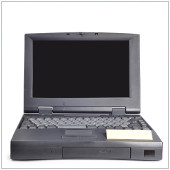 There comes a point in the life of every laptop where its hard drive slows and it begins to function at a snail’s pace. At this point, many people either toss it or retire it to the back of a closet. If you’re one of the latter, then this Spring you may be able infuse life into it. A new software available has been making waves with its ability to revive old laptops, and make them run faster than you could believe.